Setting Up Out-of-Network Printers and Email Servers
Printers
On the Add Printer or Edit Printer dialog screens, check the This is an out-of-network printer checkbox. When checked, this option indicates this is an out-of-network printer to be used for cloud-based instances of MAPS.
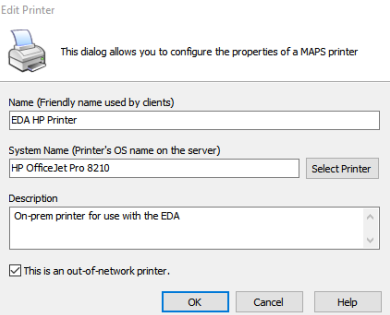
Note: the System Name must match the printer name added to the Evisions Delivery Application server.
Email Servers
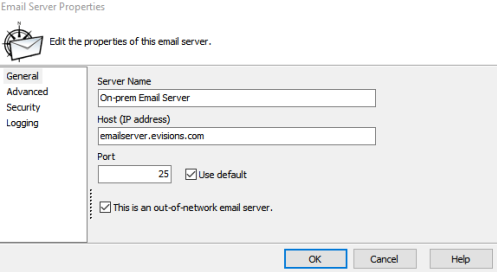
On the Email Server Properties dialog screen, check the This is an out-of-network email server checkbox. When checked, this option indicates this is an out-of-network email server to be used for cloud-based instances of MAPS.
Authorizing Applications, Users, and Groups
Once the out-of-network option has been checked, you can grant authorization of a printer or email server for use by individual applications, users, and groups. Use the dropdown menu under the authorized for use with pane on the right side of the MAPS Config screen (or right click on it) and choose Add Application, Add Group, or Add User.
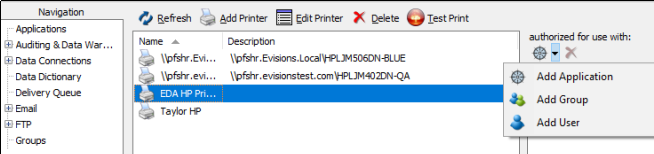
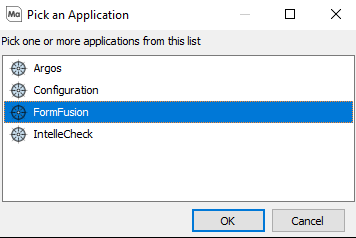
To allow FormFusion to access your out-of-network printer or email server, select Add Application, select FormFusion, and then select OK.
Testing Out-of-Network Resources
To verify that your out-of-network printer was added to MAPS successfully, select the printer and then click the Test Print button at the top of the MAPS Config screen to send a test page to your printer. Similarly, to verify that your out-of-network email server was added to MAPS successfully, select the email server and then click the Test button at the top of the screen.
The test runs from an out-of-network resource will appear in the Delivery Queue.
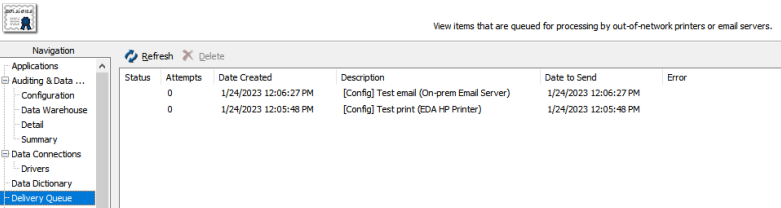
Items in the Delivery Queue are pending to be pulled by the EDA. If these jobs are created while the EDA is running they will be pulled and executed immediately.
Important: Out-of-network email servers or printers should not be modified if there are jobs pending in the Delivery Queue.